Blog › Digital stamps for PDF and Word
How to add a stamp to a Microsoft Word document
30 August 2026 · Estamplab
Make your stamp free · Browse 225 templates




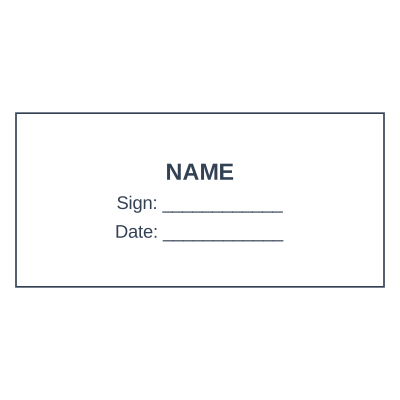

Open the stamp maker and start from any of these
You have the document open, you have the stamp somewhere on your desktop, and what should be a ten second job turns into twenty minutes of the picture shoving your paragraphs apart, jumping to the wrong page, and printing half off the edge.
Word is not being difficult on purpose. It treats every inserted picture as a character in a line of text, and a stamp is not a character. It is a mark that sits on top of the page. Every problem below comes from that one mismatch.
There are three ways to fix it. Pick by what you are going to do with the file afterwards, because that is what actually decides which one is right.
The quick answer
| You need to | Use | | --- | --- | | Stamp a finished document and send it | Stamp the .docx here. No software, no account. | | Keep editing the document in Word afterwards | Place it in Word, set In Front of Text, lock the anchor | | Put the mark on every page of a long file | Put it in the Word header | | Stop the recipient moving or deleting the mark | Stamp it, then send a PDF |
Route 1: stamp the .docx without opening Word
If the document is finished and it is going to somebody else, you do not need Word for this at all.
Open the document stamper, choose your .docx file, choose your stamp, pick the page and the corner, and download the stamped copy. The stamp is written into the file as a floating image anchored to the page, which is exactly what "In Front of Text" produces when you do it by hand in Word, so the file opens normally in Word, in Pages, in Google Docs and in LibreOffice.
Three things worth knowing about it:
- Nothing is uploaded. The file is opened and rewritten inside your browser. Your contract does not travel to a server, ours or anyone's, which is the only honest way to answer "what happens to my document".
- The date can fill itself in. Turn it on and the day is drawn into the stamp before it is applied, so the mark carries the date you actually stamped rather than the date the stamp was designed. That distinction matters on a received stamp and it is the single most common thing people get wrong.
- No account. You do the whole job free and pay $2.00 at the download, with an email address rather than a signup. On a paid plan it is included.
When this is the wrong route: if you are going to keep editing the document in Word and the stamp needs to move with your edits, place it in Word instead. A file stamped here anchors the mark to the page, which is what you want on something finished and not what you want on something still being written.
Route 2: place it in Word yourself
The manual route, for a document you are still working on.
The mechanics are short: Insert, then Pictures, then choose a transparent PNG, then change the layout option to In Front of Text, then drag it into place using corner handles so the proportions hold. The full step by step, with the Excel equivalent covers it properly, including saving the placed stamp as a Quick Part so it is two clicks next time.
Two warnings that guide does not give you, because they are where most people actually come unstuck.
Word Online cannot do it
If you are working in Word in a browser tab rather than the installed application, the wrapping options are not there. Word Online inserts pictures in line with text and gives you no way to change it. You are not missing a menu, the feature is absent.
Your options are to open the file in the desktop application (there is an "Open in Desktop App" command that does exactly this), or to take route 1 and stamp the .docx directly, which works from any browser because it does not need Word at all.
The stamp will move for the person you send it to
This is the one that gets discovered after the document has gone out.
A floating picture in Word is still tied to a paragraph, called its anchor. You cannot see the anchor unless you turn on formatting marks. When somebody edits the text above your stamp, the anchor paragraph moves down, and your stamp goes with it. A seal you placed neatly beside the signature line ends up two paragraphs into the next clause.
The fix is one checkbox:
- Turn on formatting marks (the paragraph symbol on the Home tab) so you can see the little anchor icon.
- Drag the anchor to the paragraph the stamp genuinely belongs to, usually the signature block.
- Open the layout options for the picture, go to Position, and tick Lock anchor.
Now the stamp keeps its position relative to that paragraph rather than drifting through the document.



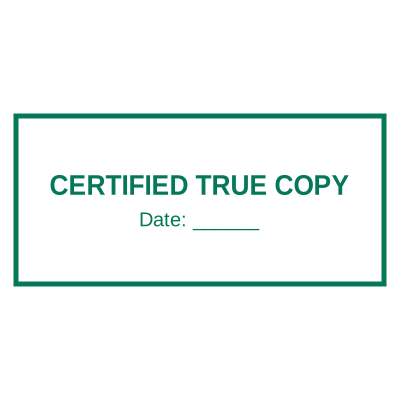
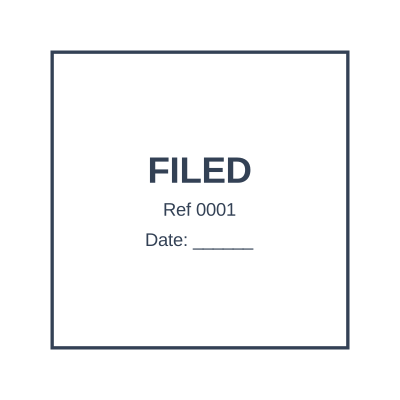

Open the stamp maker and start from any of these
Route 3: every page, using the header
A stamp placed on page one prints on page one. If the mark belongs on every page, including pages added later, it goes in the header.
Open the header by double clicking at the top of the page, insert the picture there, set it to In Front of Text, and drag it wherever on the page it should sit. It is not confined to the top: a picture placed in the header can be positioned anywhere on the page and will repeat on all of them.
This is how a company mark ends up on every page of a forty page report without anyone placing forty pictures, and it is also how it survives someone inserting a new section in the middle.
If you would rather not do it by hand, the document stamper has an every-page switch that does the same job on a .docx in one click.
.doc or .docx, and why it decides everything
If your file ends in .doc rather than .docx, none of the modern handling applies. The old .doc is a different, binary format from before 2007, and it has to be converted first: open it in Word and use Save As, choosing "Word Document (.docx)".
Do that before you stamp it, whichever route you take. The document stamper accepts .docx and tells you plainly if you hand it a .doc, rather than producing a file that fails to open later.
Making the mark stick: send a PDF
Here is the uncomfortable part of stamping a Word document. Whatever you do, the recipient can select your stamp and press delete, or drag it somewhere else, because a .docx is an editable file and a picture in it is an editable picture.
If the stamp is there to say something about the document, send a PDF. Word's own Save As will produce one, the stamp flattens into the page, and the mark stops being a draggable object.
The same tool handles both formats, so a common sequence is: stamp the .docx, save it as a PDF from Word, and send the PDF while keeping the .docx for your own records. Or skip a step and stamp the PDF directly once the document is final.
The transparency thing, in one paragraph
Both routes depend on it, so it is worth being blunt. A stamp saved as a JPG has no transparency, because the format has no alpha channel to carry it. Every pixel that looked like empty space around your seal is stored as literal white, so what lands on your document is a white card covering the sentence underneath. Use a transparent PNG and the problem never appears. This one choice accounts for more Word stamping complaints than every layout setting put together.
Does a stamp on a Word document mean anything?
It means what the people exchanging the document agree it means, which in ordinary commercial practice is quite a lot: a received mark that records when something arrived, a paid mark on an invoice, a company seal on a quotation. This is a design tool and the description here is of common commercial practice rather than advice on what any particular document requires, so where a specific form, filing or profession sets rules, check the requirement with the body that sets it.
The one rule that has no exceptions: only apply a mark you are entitled to use. A stamp carrying a company, a registration number or a professional title you do not hold is not a formatting question, and we will not help anybody impersonate an issuer.
Frequently asked questions
How do I add a stamp to a Word document without Word?
Use the document stamper. Choose the .docx, choose the stamp, pick the page and corner, download. It runs in the browser, so it works on a Chromebook, on a phone, and on any machine where Word is not installed.
Why does my stamp move when I edit the document?
Because it is anchored to a paragraph, and editing above that paragraph pushes the anchor down. Turn on formatting marks, drag the anchor to the paragraph the stamp belongs to, then tick Lock anchor in the picture's position options.
How do I put a stamp on every page in Word?
Put it in the header rather than on the page. Insert it there, set In Front of Text, and position it anywhere on the page. It then repeats on every page, including ones added afterwards.
Can I add a stamp in Word Online?
Not properly. Word Online has no text wrapping controls, so the picture stays in the line of text and pushes your paragraphs apart. Open the file in the desktop application, or stamp the .docx in your browser instead.
Why is my stamp in a white box?
The file is a JPG, which cannot store transparency. Re-download the stamp as a transparent PNG and the box disappears.
Can the stamp show today's date?
Yes. Turn the date on before you download and it is drawn into the stamp itself, so the document records the day it was stamped rather than the day the stamp was made.
What does it cost?
Designing the stamp and doing the placement costs nothing. You pay $2.00 when you download the stamped document, with an email address and no account, or nothing at all on any paid plan.
Read more: The full Word and Excel walkthrough, including the Excel anchoring setting
Read more: Transparent stamps for Word and PDF, and how to test one in ten seconds
Read more: Putting a stamp on a PDF, and the five mistakes that ruin it
Every kind of stamp and seal
- Notary stamps and seals
- Rubber stamps
- Rubber stamp maker
- Self-inking stamps
- Office stamps
- Official stamps
- Company seals
- Corporate stamps and seals
- Company chops
- Seals for civil servants
- Justice and court stamps
- Legal and advocate stamps
- Certified true copy stamps
- Medical stamps
- Pharmacy stamps
- Veterinary stamps
- Engineer and architect seals
- Land surveyor seals
- Bank stamps
- School and principal stamps
- Teacher and marking stamps
- University and college seals
- Library stamps
- Inspection stamps
- Courier and logistics stamps
- Construction and site stamps
- Real estate stamps
- Hotel and restaurant stamps
- Church and charity seals
- Tender and bid stamps
- HR and payroll stamps
- Received and paid stamps
- Confidential and draft stamps
- Signature stamps
- Date stamps
- Custom band stamps
- Numbering stamps
- Address stamps
- Monogram stamps
- Wedding stamps
- Gift and craft stamps
- Art and logo stamps
- Wax and foil seals
- Stamp or seal, by profession